Create Database System in Exadata, Bare Metal or VM
 André Luiz Dutra Ontalba
publicado
leitura 4 min
cost 835 palavras
André Luiz Dutra Ontalba
publicado
leitura 4 min
cost 835 palavras

Este artigo fornece um resumo da criação de um sistema de banco de dados usando Exadata, Bare Metal ou VM no Oracle Cloud.
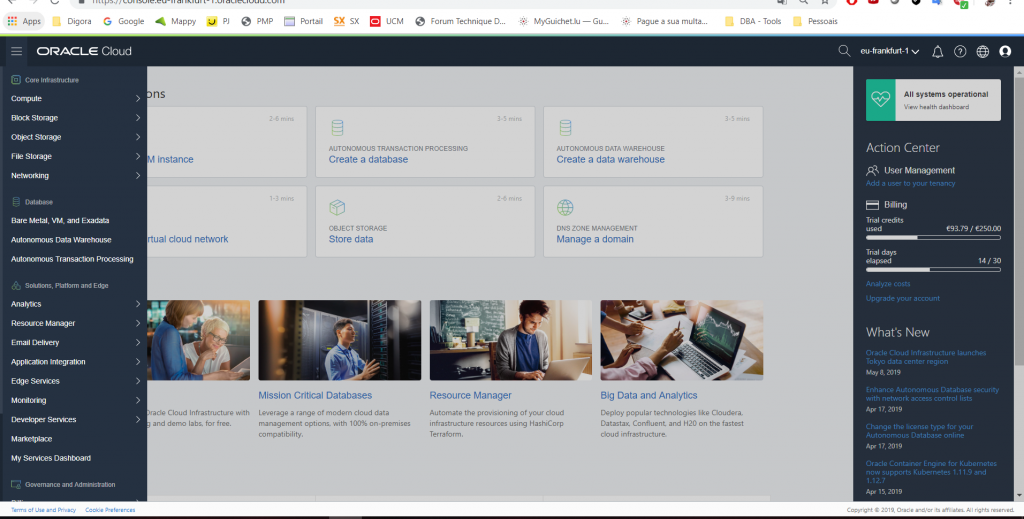
Faça o login no Oracle Cloud e clique em “Bare Metal, VM e Exadata” no banco de dados

This article provides a run through of creating a Database System using Exadata, Bare Metal or VM on the Oracle Cloud.
Log into Oracle Cloud and click on the “Bare Metal, VM and Exadata” in the Database
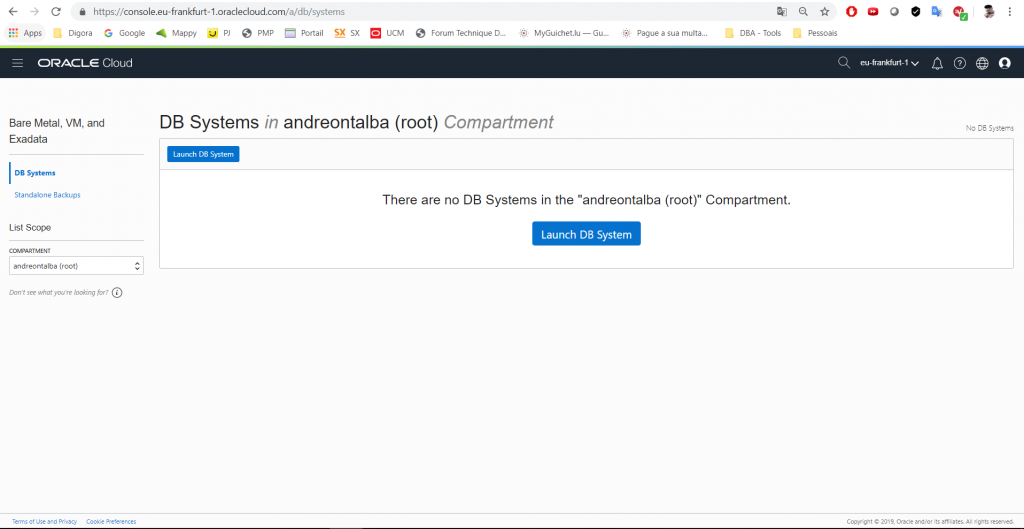
Selecione o compartimento no qual você deseja criar o serviço e clique no botão “Launch DB System”.
Select the compartment you want to build the service in, then click the “Lauch DB System” button.
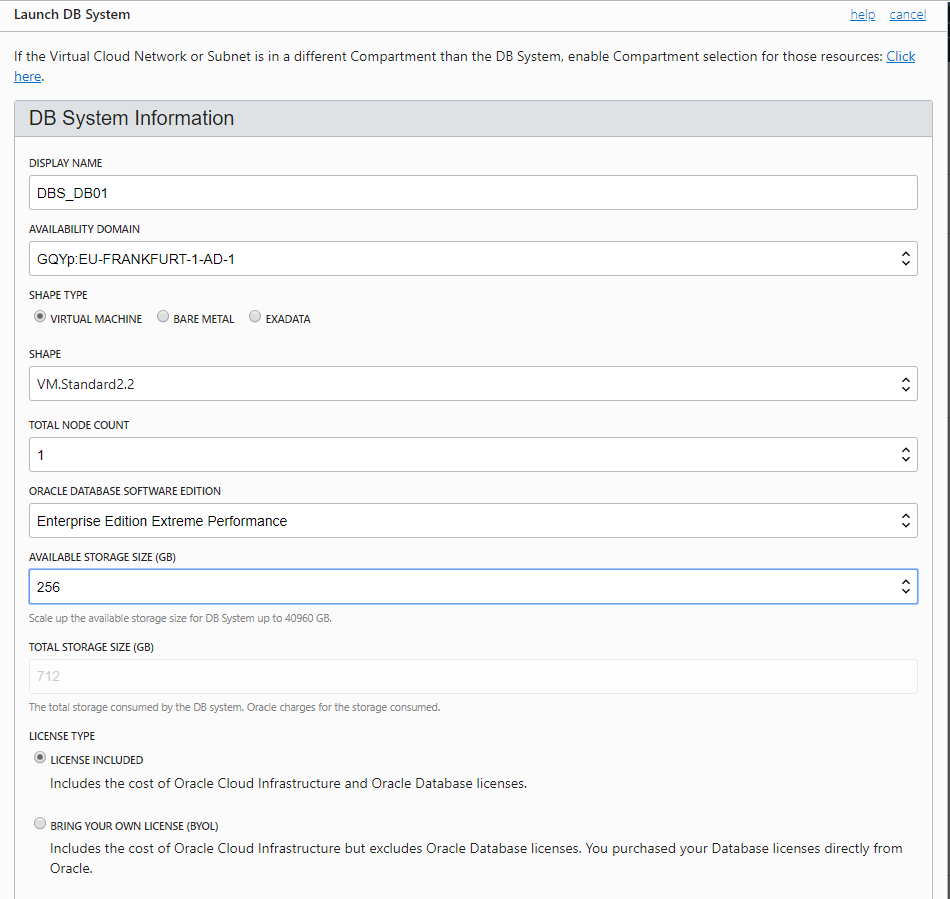
Digite os detalhes do serviço que você deseja criar. Selecionamos o tipo VIRTUAL MACHINE, porque o Bare Metal e o Exadata não estavam disponíveis para a nossa região.
Selecionamos apenas 1 nó para realizar este artigo, pois selecionamos a opção Enterprise Performance Extreme Perfomance. Vamos preparar outro artigo explicando todos os detalhes das diferenças de Shapes e Softwares para o DB System.
Lembre-se de selecionar o modelo de licenciamento apropriado.
Enter the details of the service you want to create. We selected the VIRTUAL MACHINE type, because Bare Metal and Exadata were not available for our region.
We selected only 1 node to perform this article as we selected the Enterprise Edition Extreme Perfomance option. We will prepare another article explaining all the details of the differences from Shapes and Softwares to DB System.
Remember to select the appropriate licensing model.
Agora vamos gerar as chaves para usar em nosso sistema de banco de dados.
Recomendamos que você gere uma chave usando o Putty Key Generator.
Now we will generate the keys to use in our DB System.
We recommend you generate a key using the Putty Key Generator.
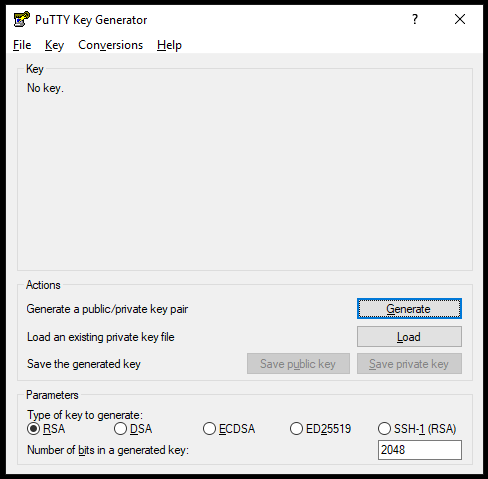
Clique em Gerar e mova o mouse até que a chave seja criada.
Click Generate and move the mouse until the key is created.
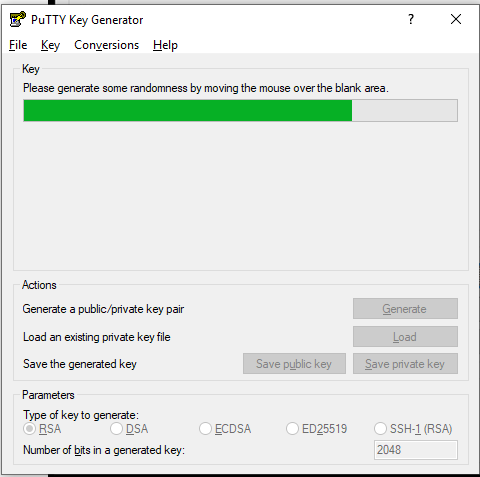
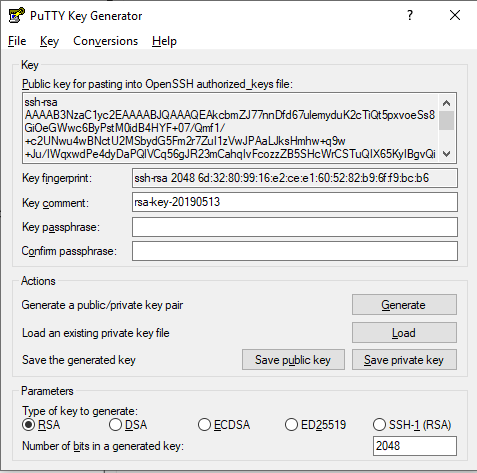
Depois que ele foi criado, salve uma cópia como Chave Pública e outra como Chave Privada.
Agora vamos colocar a chave pública para ter acesso depois que a máquina for criada via SSH.
After it was created save a copy as Public Key and another as Private Key.
Now let’s put the public key to have access after the machine is created via SSH.
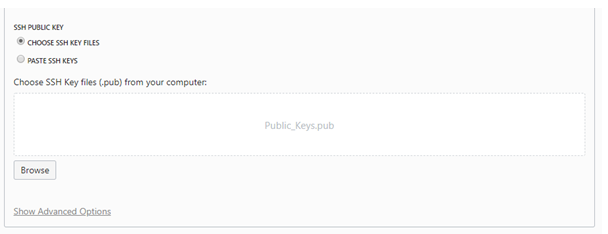
Clique em Escolher Arquivos
Click in Choose Files

Selecione o arquivo salvo como Chave Pública, no meu caso Public_Keys. bar
Depois disso, se você não criou nenhum VNC (Virtual Network Circuit), ele será criado automaticamente. No meu caso eu já criei então já veio selecionado.
Select the file saved as Public Key, in my case Public_Keys. Pub
After that, if you have not created any VNC (Virtual Network Circuit), it will be created automatically. In my case I have already created then already came selected.
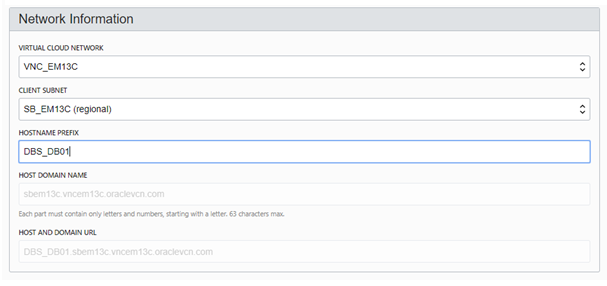
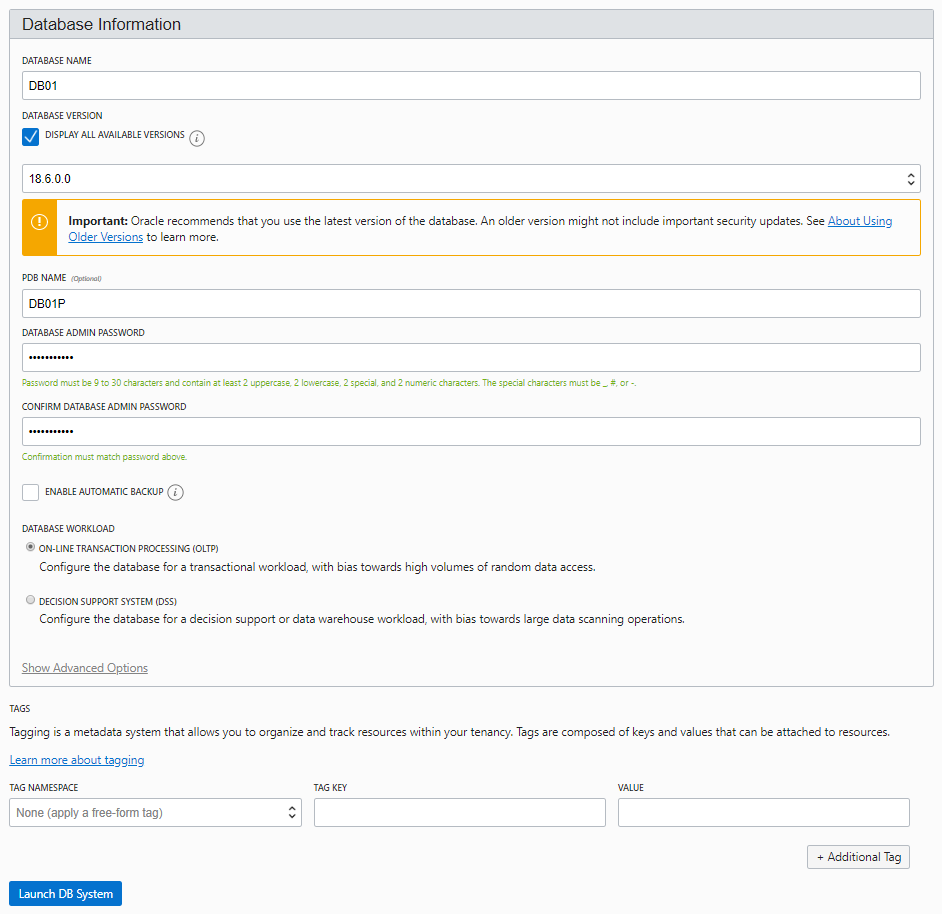
Agora coloque informações sobre o banco de dados e depois disso clique em Lauch DB System
Now put information about the database and after that click Lauch DB System
Tela durante a criação do recurso.
Screen while creating the resource.
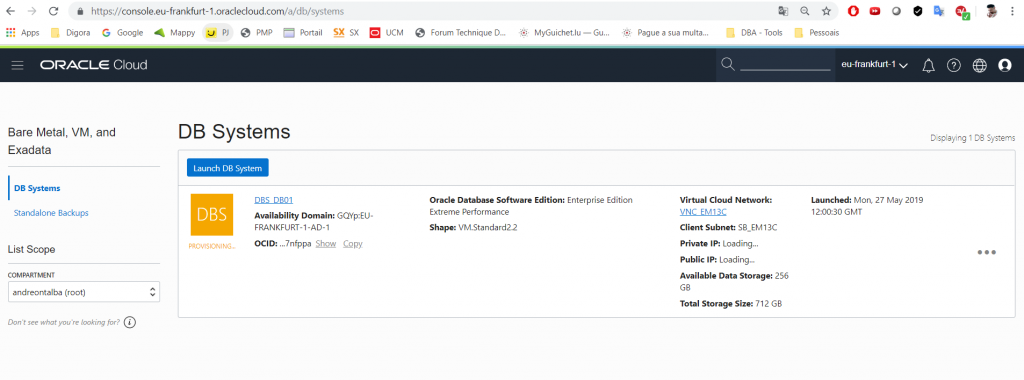
Depois de uma hora, o ambiente foi criado e perguntamos por que tanta demora.
Essa resposta é simples, construir um sistema de banco de dados envolve vários componentes, como NETWORK, STORAGE, COMPUTE e instalação de software.
After an hour the environment was created, and we are asked why so much delay.
This answer is simple, building a DB System involves several components such as NETWORK, STORAGE, COMPUTE and software installation.
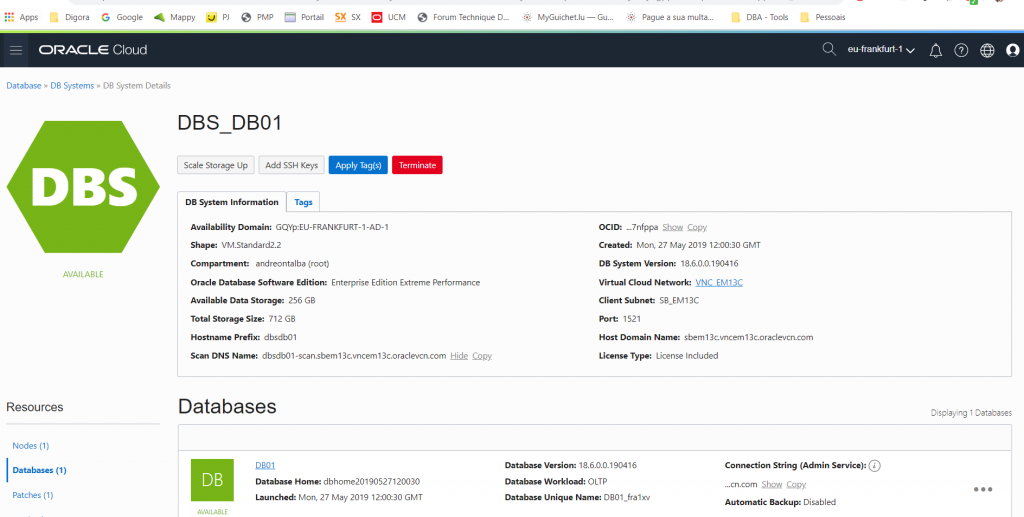
Pronto seu sistema de banco de dados está OK.
Agora vamos acessar a VM através do SSH.
Ready your DB System is OK.
Now we will access the VM through SSH.
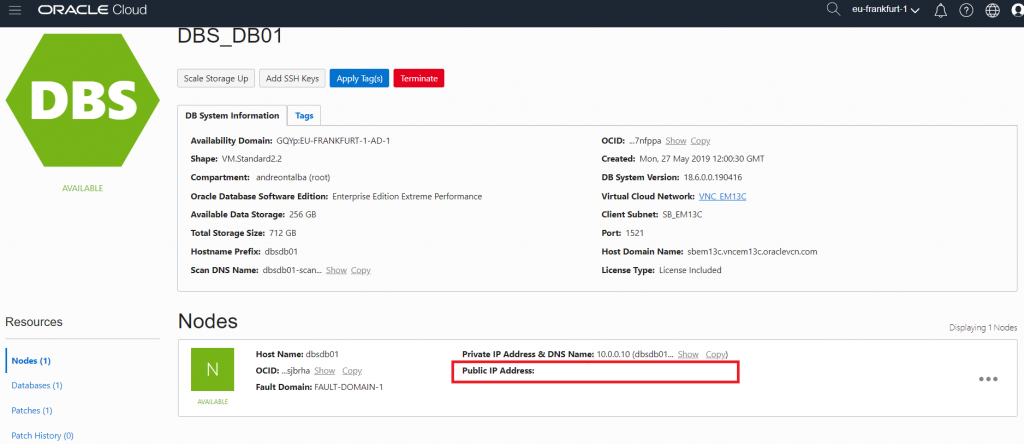
Pegue o IP que parece para você neste item e abra em um cliente SSH, lembrando que devemos usar a chave privada agora para fazer a conexão.
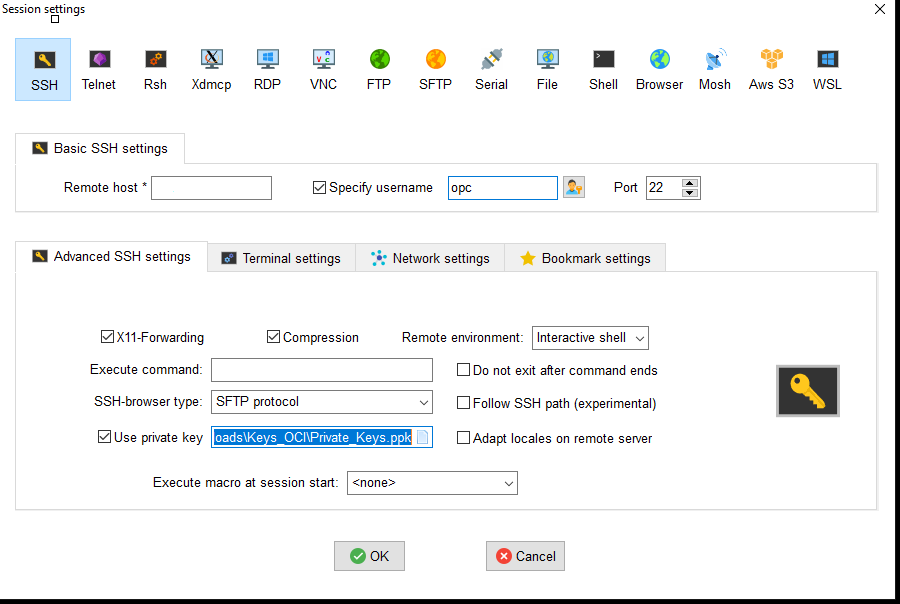
No meu caso eu acesso usando mobaxterm, no host remoto eu coloquei o IP, selecionei o nome de usuário e digite “OPC” e selecione Usar a chave privada que foi gerada.
Take the IP that looks like for you in this item and open in an SSH client, remembering that we should use the private key now to make the connection.
In my case I access using mobaxterm, in Remote host I put the IP, select the username and type “OPC” and select Use the Private Key that was generated.
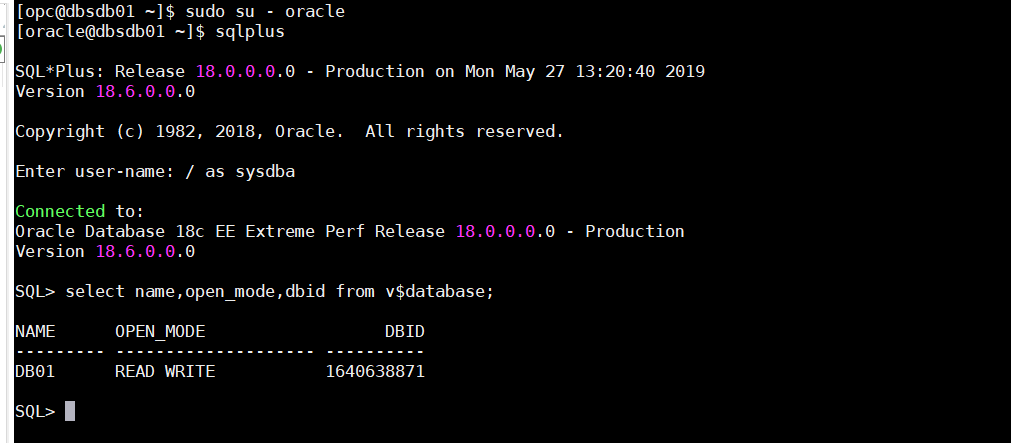
Servidor pronto conectado e pronto para usar seu sistema de banco de dados.
Ready server connected and ready to use your DB System.
Hope this helps. See you !!!
André
Disclaimer: “The postings on this site are my own and don’t necessarily represent may actual employer positions, strategies or opinions. The information here was edited to be useful for general purpose, specific data and identifications was removed to allow reach generic audience and to be useful.”
André Luiz Dutra Ontalba
DBA ATG Oracle há 27 anos, especialista em Banco de Dados Oracle e SQL SERVER, MySQL, Azure, AWS, Oracle Cloud. Bacharel em Ciências da Computação Pós Graduado pela FIAP em Administração de Banco de dados, MBA em Administração de TI pela FGV a MBA em Master Information Technology pela FIAP e BABSON e Mestrado em Gestão Estratégica em Tecnologias de Informação pela UNIATLANTICO e UNIB . Com sólidos conhecimentos em Banco de Dados e Sistemas operacionais, possui certificações Oracle OCP 10g/11/12g/2019 Oracle Cloud Professional, AWS Professional, Azure Expert e mais 85 outra certificações. Strategic Customer Service Manager at Oracle / Oracle ACE Alumni Member