Cloud Guard – OCI
 André Luiz Dutra Ontalba
publicado
leitura 2 min
cost 401 palavras
André Luiz Dutra Ontalba
publicado
leitura 2 min
cost 401 palavras

Oracle Cloud Guard provides a unified view of your security posture across all Oracle Cloud Infrastructure (OCI) clients. Cloud Guard identifies new threats, detects misconfigured OCI resources, identifies any insecure activity across tenants, exposes malicious threat activities, and provides security administrators the visibility to triage and resolve cloud security issues.
What Is Oracle Cloud Guard?
Cloud Guard examines your OCI resources for security weaknesses related to configuration and monitors your operators and users for risky activities.
The advantages of enabling Cloud Guard:
- Its free to enable
- Monitor and detect security violations
- Detect and remediate threats
- Protect customer tenancies
- Automatically remediate security problems
Obtain a comprehensive view of risk posture
First plan how Cloud Guard functionality will be mapped onto your environment before you enable and configure Cloud Guard.
All you need to do is specify a single target that maps to the top-level compartment in your OCI branch that you want to monitor.
Cloud Guard will do the rest, not letting anything that represents a potential security risk go undetected.
Detector Recipe
Accessing a detector recipe from the Detector Recipes page allows for varied rule configurations. Carefully review your business need and configure the detector rules specifically for each compartment. Note, you must define separate targets for each compartment.
- OCI Configuration Detector Rules
- OCI Activity Detector Rules
- OCI Threat Detector Rules
The target configuration will impact all compartments. The detector and responder rule settings for a target apply to the top-level compartment assigned to that target and to any subordinate compartments below it in the compartment hierarchy.
How to Enable OCI Cloud Guard
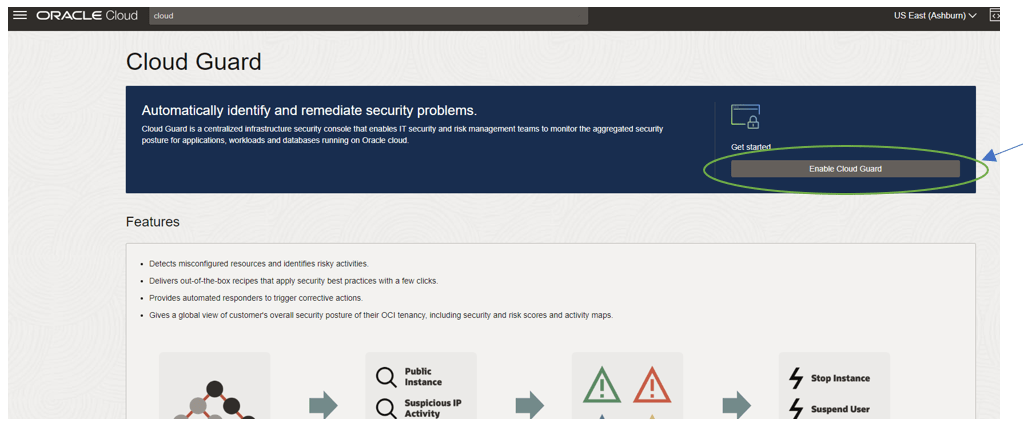
1. Log into the OCI console and look for Cloud Guard

2. Select “Enable Cloud Guard”
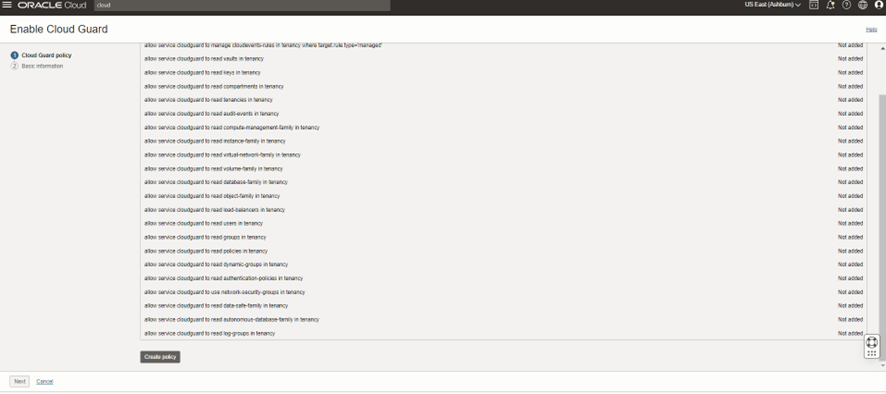
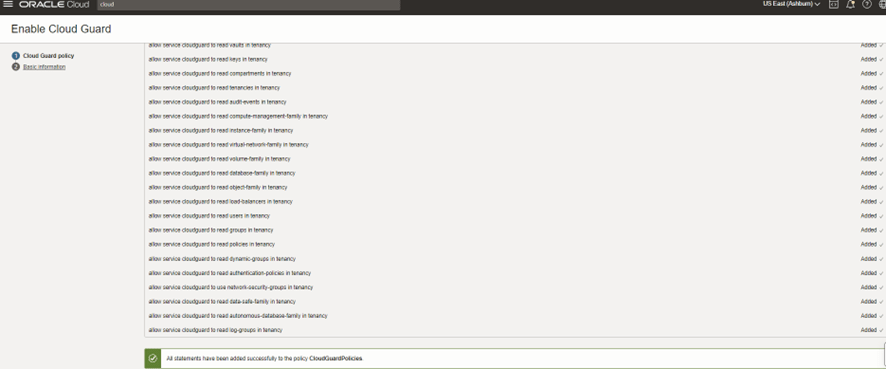
3. Create the policy and then click on next.
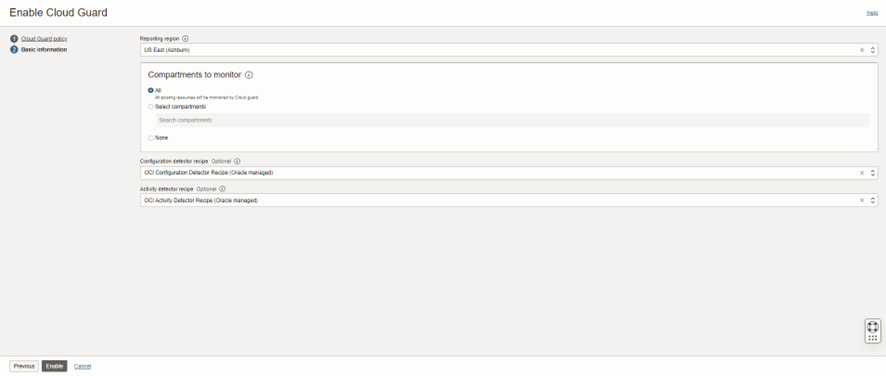
4. In this item we need to choose which region, compartment monitoring.
In my case I selected Ashburn, I also selected the monitoring of all activities in the compartment and selected the Detect and Activity Recipe.
After that click on next.
5 . Select “Go to Cloud Guard”

Cloud Guard monitoring is now active.
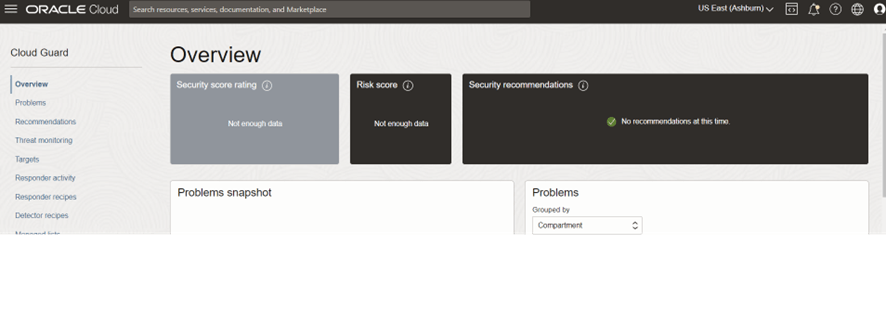
In an upcoming article I will go into detail about Cloud Guard items.
I hope this helps you!!!
Stay tuned by following on twitter @aontalba and Linkedin
Andre Luiz Dutra Ontalba Disclaimer: “The postings on this site are my own and don’t necessarily represent may actual employer positions, strategies or opinions. The information here was edited to be useful for
André Luiz Dutra Ontalba
DBA ATG Oracle há 27 anos, especialista em Banco de Dados Oracle e SQL SERVER, MySQL, Azure, AWS, Oracle Cloud. Bacharel em Ciências da Computação Pós Graduado pela FIAP em Administração de Banco de dados, MBA em Administração de TI pela FGV a MBA em Master Information Technology pela FIAP e BABSON e Mestrado em Gestão Estratégica em Tecnologias de Informação pela UNIATLANTICO e UNIB . Com sólidos conhecimentos em Banco de Dados e Sistemas operacionais, possui certificações Oracle OCP 10g/11/12g/2019 Oracle Cloud Professional, AWS Professional, Azure Expert e mais 85 outra certificações. Strategic Customer Service Manager at Oracle / Oracle ACE Alumni Member